
Computer-side configuration (Windows)
1. First of all you need to configure the clash client in advance and make sure it connects correctly according to our Connecting with Clash on Windows (recommended) tutorial.
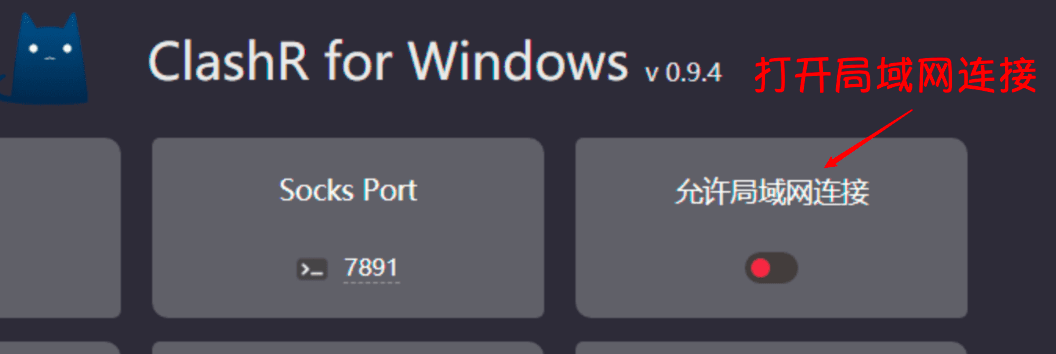
Then in the main clash interface, set the Allow LAN Connections and System Proxy switches on.
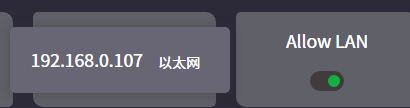
Then mouse over the Allow LAN connection to see the local IP address of the machine and write it down, you will need it later.
Computer-side configuration (macos system)
1. First of all you need to configure the clash client in advance and make sure you can connect to it correctly according to our tutorial on connecting via Clash under macos (recommended).
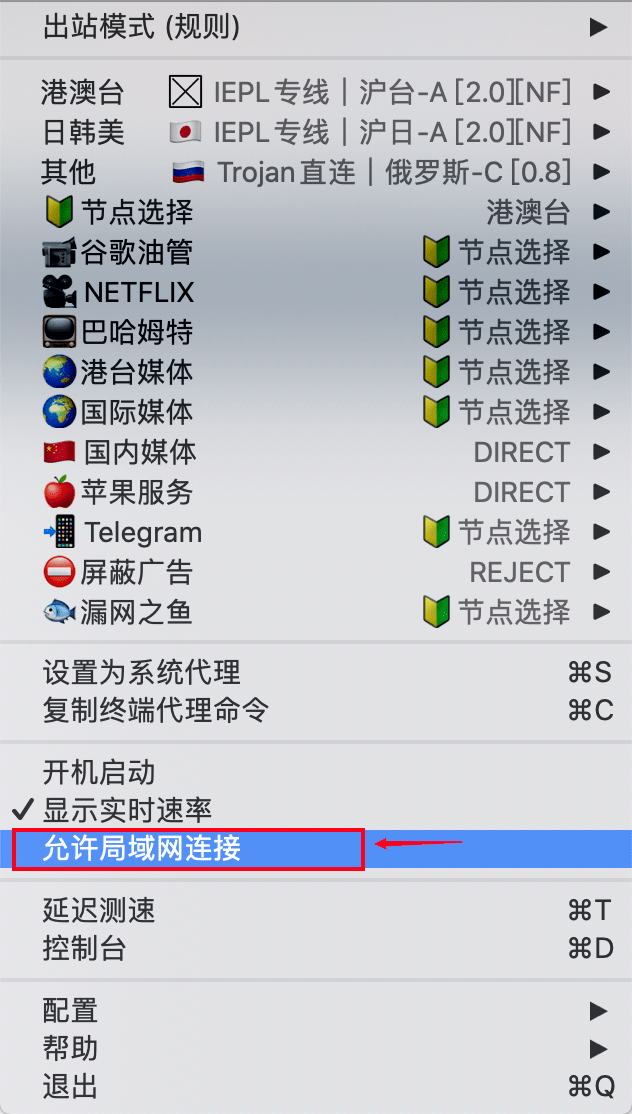
Then in the main clash interface, set the Allow LAN Connections switch on.
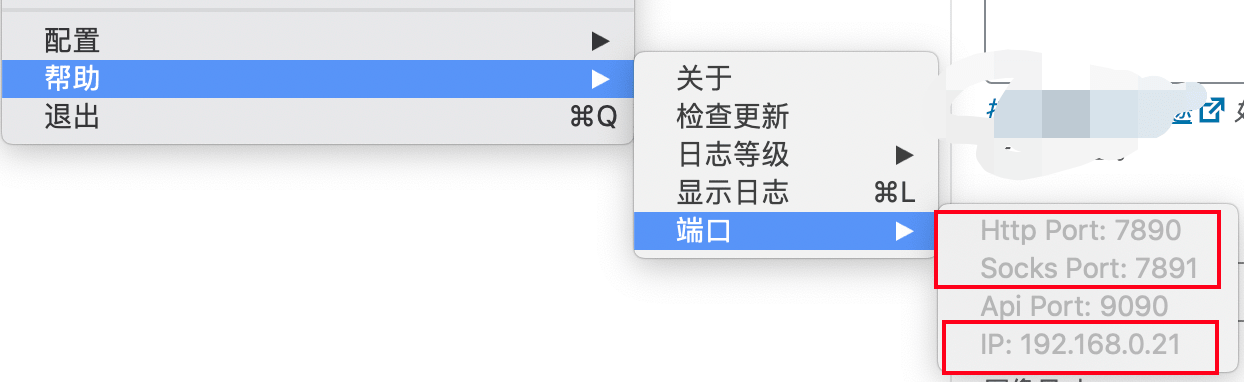
Then mouse over the Help-Ports section to check the local LAN IP and ports and make a note of them, you will need them later.
Switch Host Configuration
1. Open Switch and find the Internet in the settings, change the settings of the current wifi connection, set the proxy server to enable, fill in the server ip with the local LAN IP that you just remembered, and the port is generally defaulted to 7890 The port is usually 7890 by default.
DNS settings can be changed or not, here we recommend Ali’s DNS: 223.5.5.5 Or Tencent: 119.29.29.29.
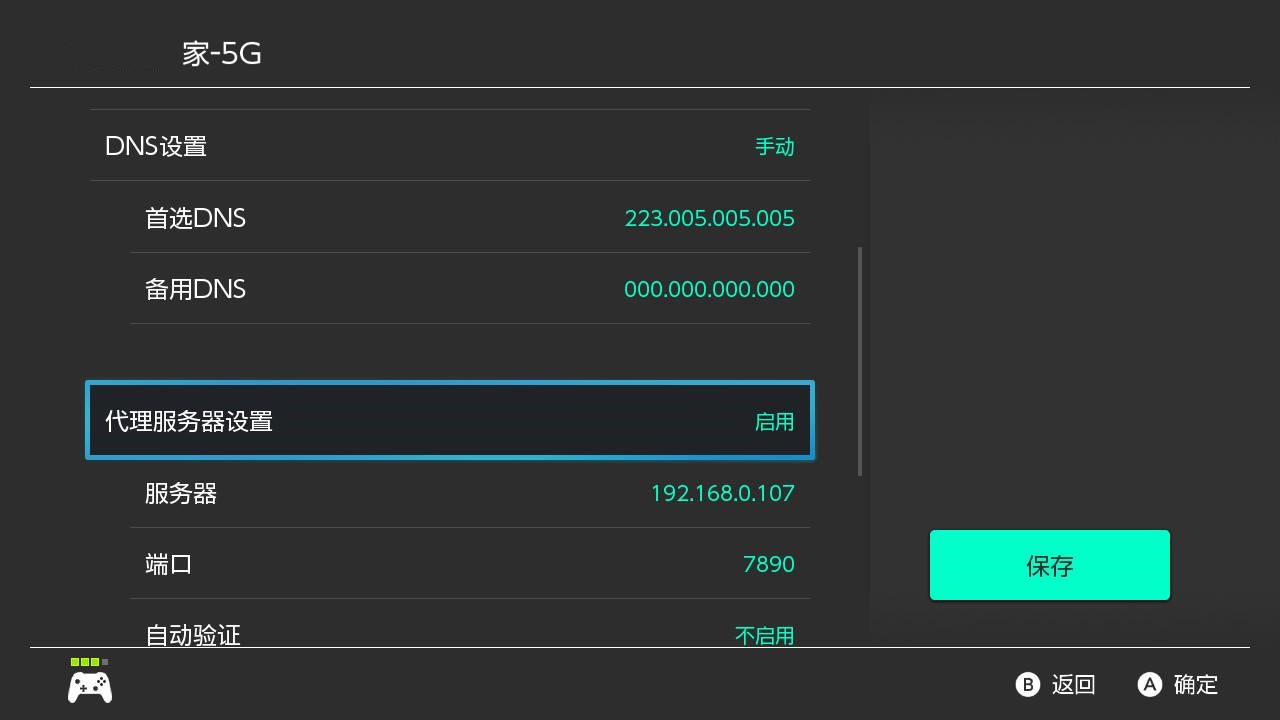
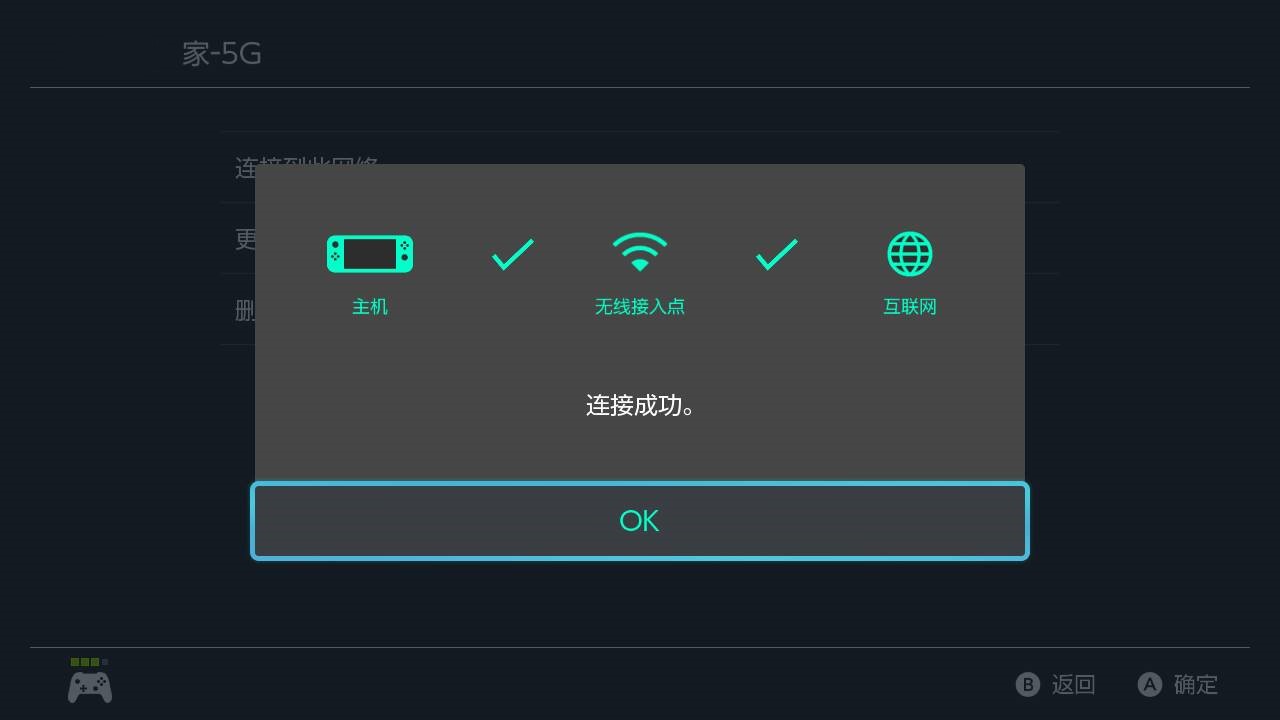
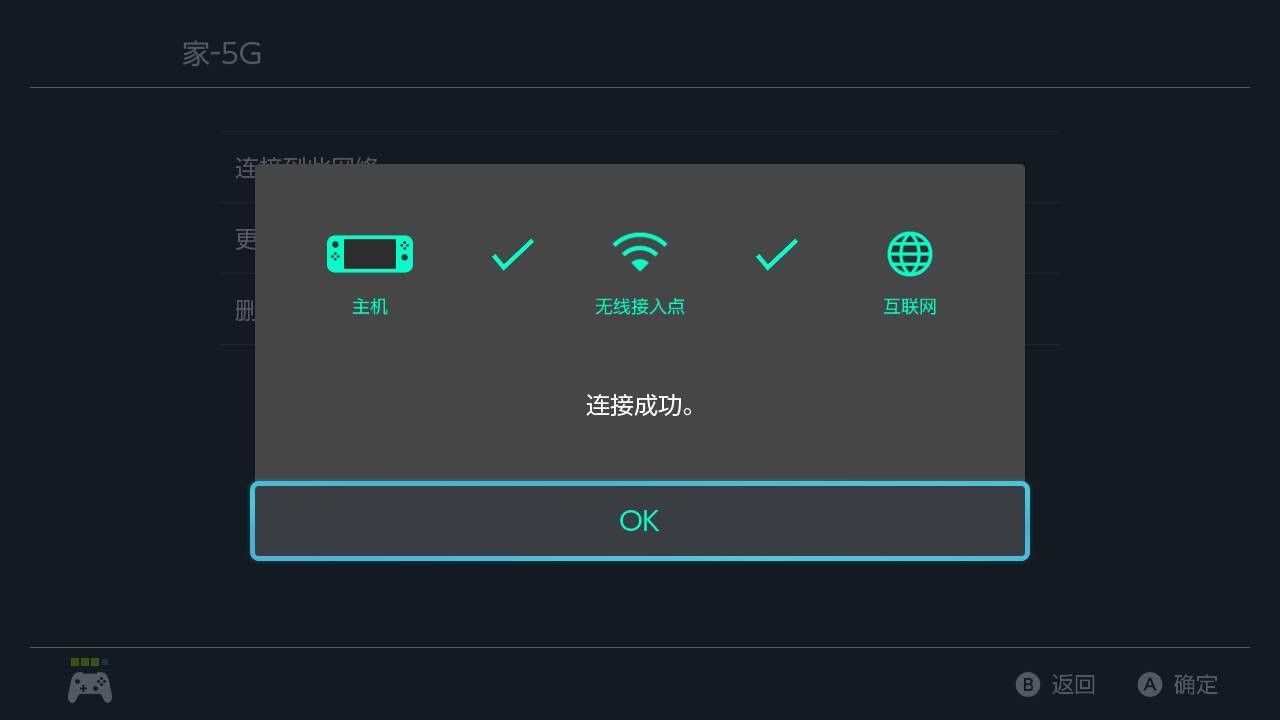
After setting up, click Save to connect to this network and prompt for a successful connection.
Come run down the dyno handle!
You can see that the download speed is much faster than before.