Mielink dedicated client, one-click login to use.
downloading
👉 Click here to download: Mielink-Setup.exe
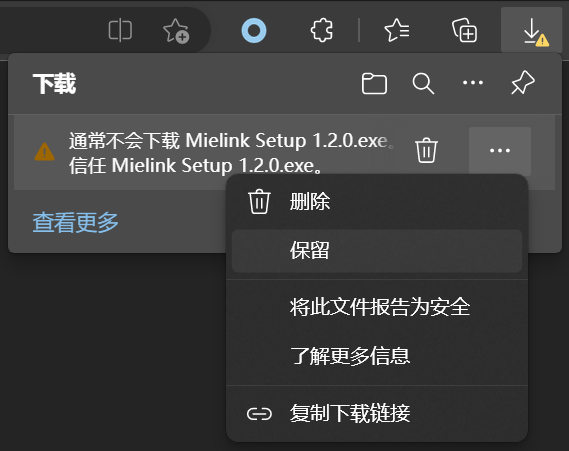
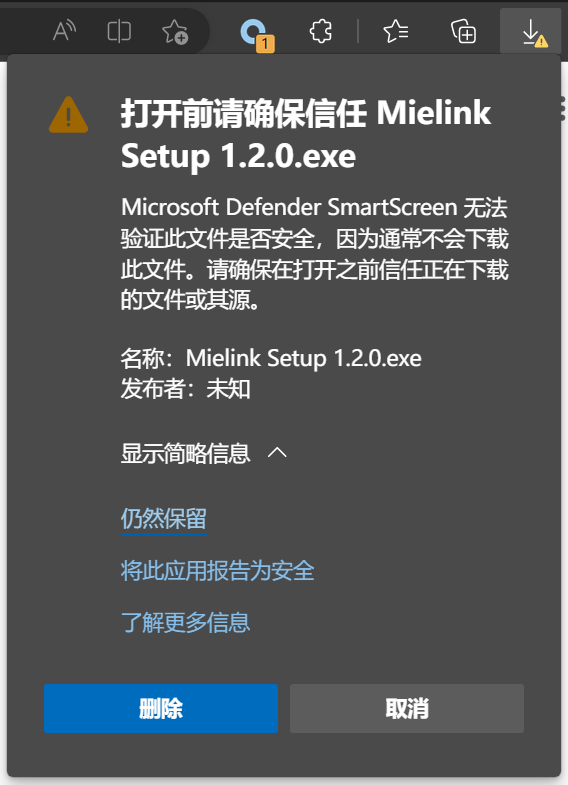
Windows will block files from unknown sources, keep the file as follows to save it to the download directory.
mounting
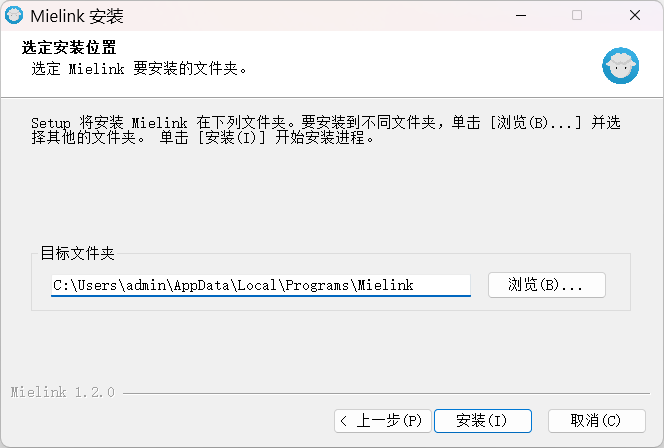
It is recommended to install to the default directory, otherwise file permission problems may occur.
activate (a plan)
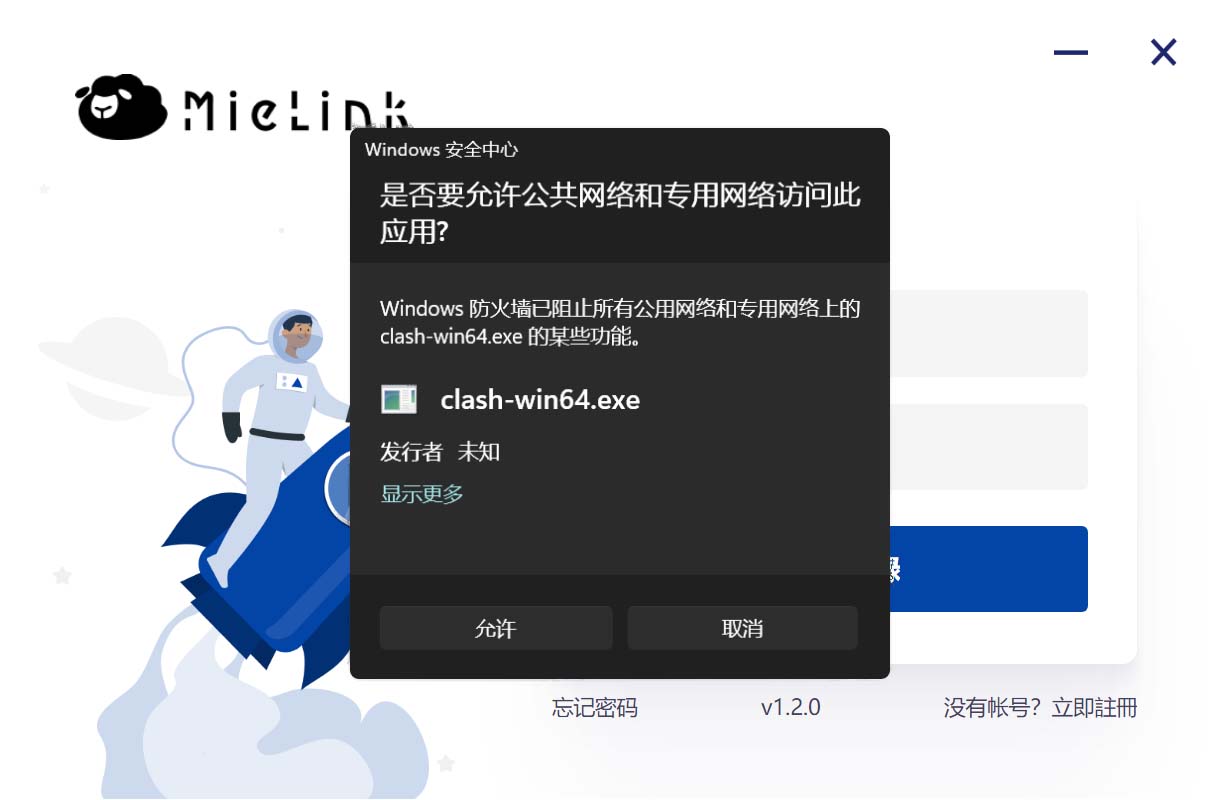
The first time the client starts it will ask for internet access, just allow it.
Once allowed, you can enter your account email and password to log in to the client.
act on behalf of sb. in a responsible position
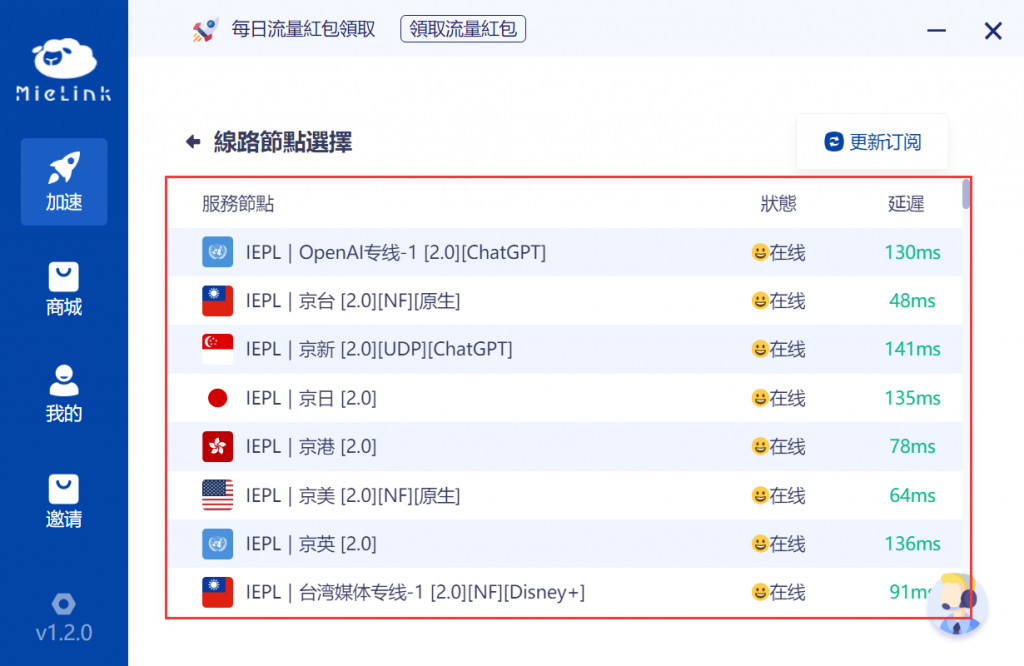
After logging into the client, click here to access the node list to select a node.
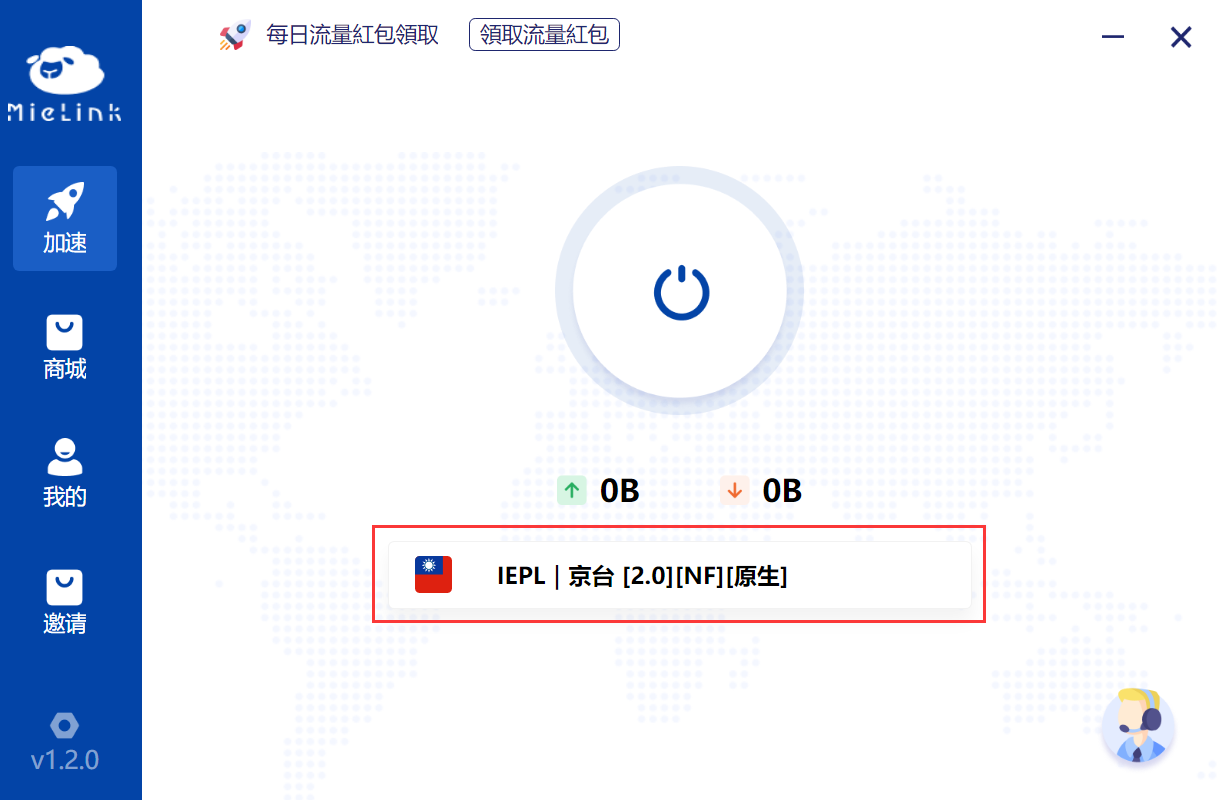
Tap the node you want to connect to use, and the client will automatically connect to the selected line.
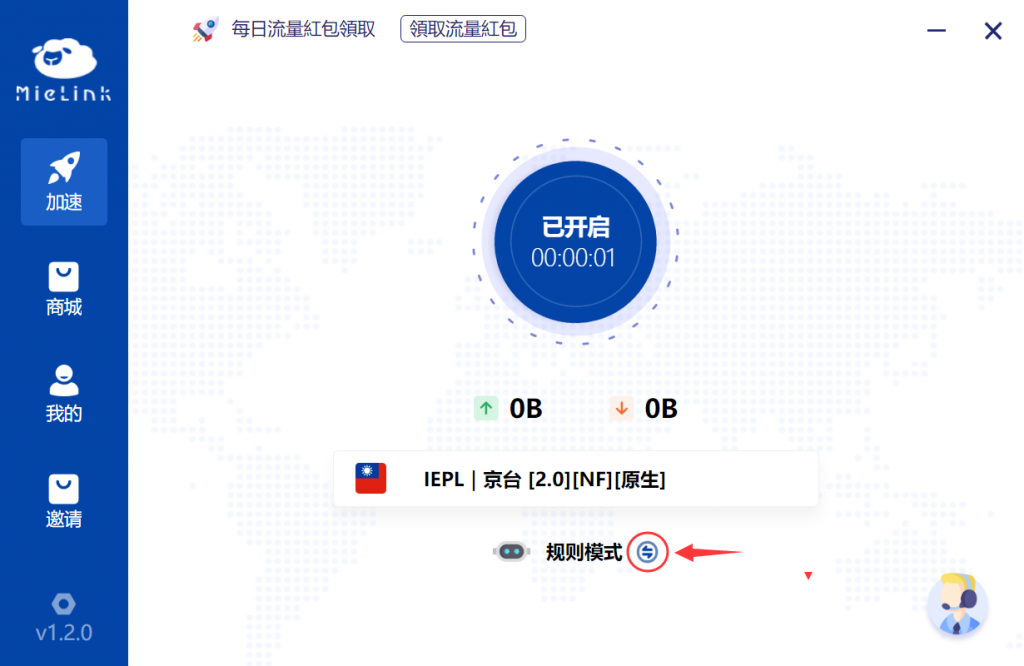
After the client initiates the connection, you can switch the proxy mode by clicking the icon to the right of the mode.
Terminal Agent
Click the icon at the bottom left of the client to switch to the settings page.
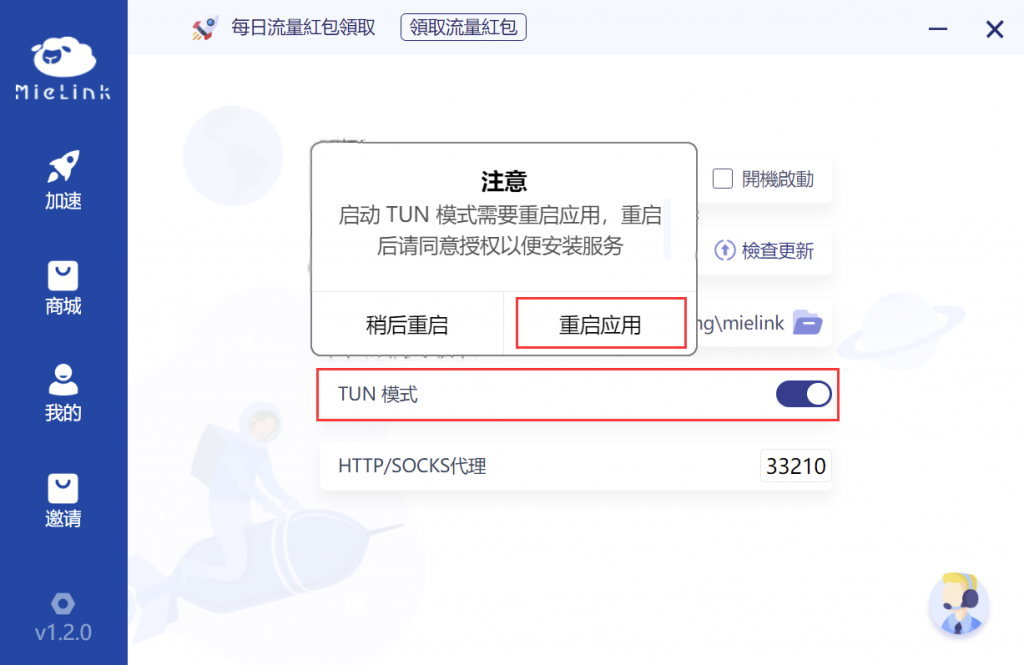
After clicking the [ TUN MODE ] switch to turn on the TUN mode, click Restart Application in the pop-up window to enable it.
※ 若点击 [ 稍后重启 ] ,则需把 TUN 模式 关闭,否则下次启动客户端可能无法正常使用。
 ※ 首次启动 TUN 模式 将会要求安装驱动和批处理权限,默认下一步安装和允许即可。